First steps
Updated October 18, 2026
KeyRota sets almost everything up by itself: you download it, click a couple of buttons and start the rotation with F1.
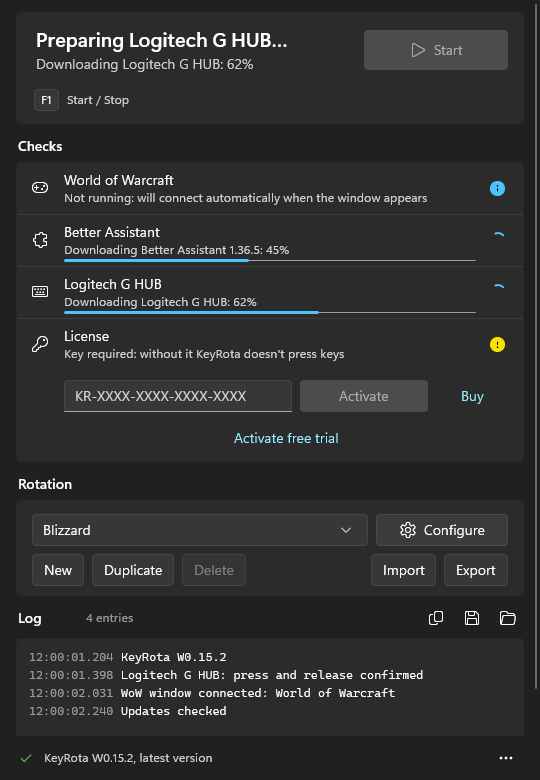
KeyRota prepares everything it needs; the Checks rows turn green one by one. 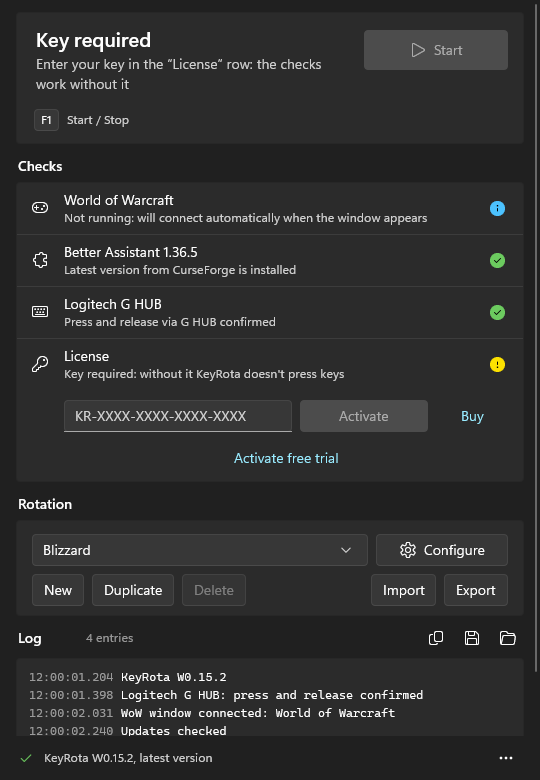
Click Activate free trial or paste your key. 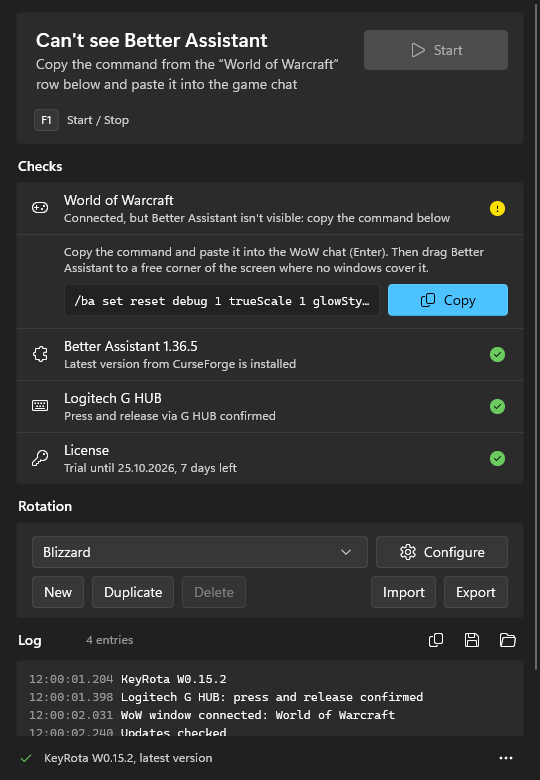
Copy the command and paste it into the game chat. 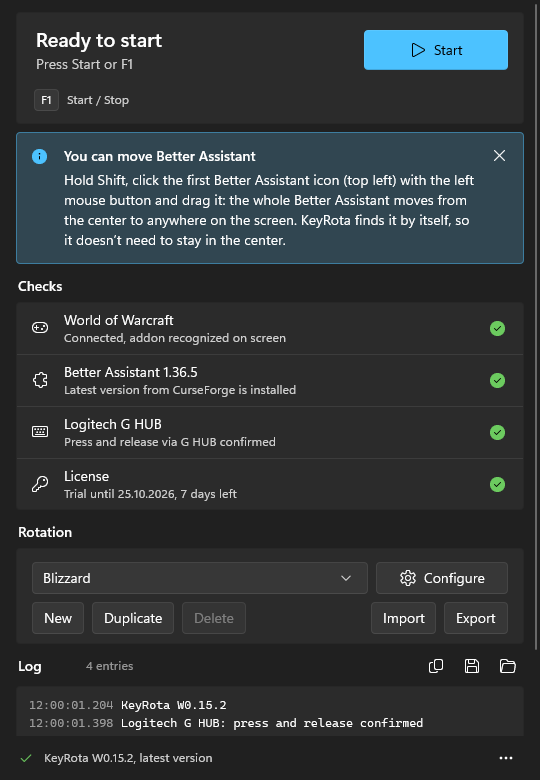
You can move Better Assistant to a free corner of the screen. 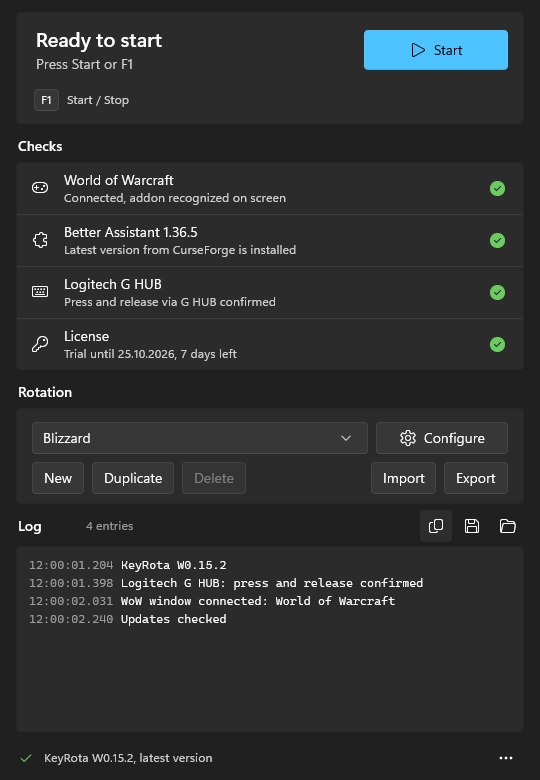
All set: press F1 or Start. 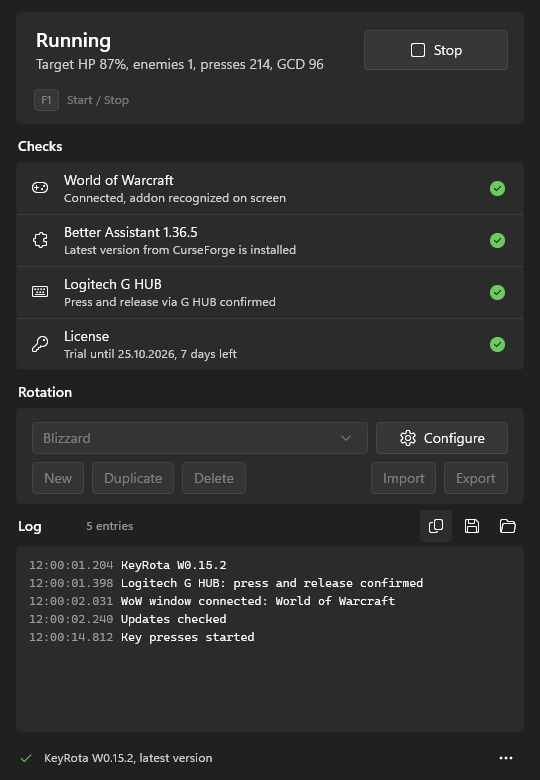
The rotation is running. Press F1 again to stop.
1. Download KeyRota#
On the site's home page click Download for Windows. You need Windows 10 or Windows 11.
2. Install it#
Open the downloaded KeyRotaSetup.exe. KeyRota installs itself, with no setup wizard and no administrator rights, and opens right away. Shortcuts appear in the Start menu and on the desktop.
3. Wait while everything gets ready#
On the first launch KeyRota prepares everything it needs by itself. In the Checks block the rows turn green one by one:
- World of Warcraft: KeyRota finds the game folder and connects to the game as soon as you start it.
- Better Assistant: KeyRota installs this addon into the game and keeps it up to date.
- Logitech G HUB: if it's missing, KeyRota downloads and opens the Logitech installer. When Windows asks whether to let it make changes, click Yes and wait for the installation to finish.
4. Activate your license#
In the License row click Activate free trial: 7 days with no limits. If you already have a key, paste it into the field and click Activate.
5. Connect the game#
Start World of Warcraft and log in with a character: KeyRota connects to it by itself.
If the top of the KeyRota window says “Can't see Better Assistant”, click Copy in the World of Warcraft row, paste the command into the game chat and press Enter.
Better Assistant appears on the game screen. You can move it to a free corner: hold Shift and drag its first icon (top left) with the left mouse button. What matters is that no other window covers it.
6. Start the rotation#
When all rows are green, the top of the window says Ready to start. The Rotation block has the Blizzard profile selected: KeyRota plays the rotation the game itself suggests, on any class and specialization.
Press F1 or Start. To stop, press F1 again or click Stop.
7. If you like#
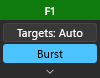
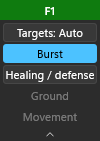
- A small quick settings panel sits over the game. The colour of its header shows the state: green, the rotation is running; yellow, paused while the chat is open; red, stopped. Drag the panel by its header, fold it with the arrow at the bottom or hide it in the “…” menu.
- Your own rotations appear in the same Rotation list, below the Blizzard profile. They use F2 (target mode: Auto, Single, Multiple), F3 (Burst) and the panel buttons. The Blizzard profile doesn't need them, so they are dimmed.
KeyRota updates itself: it installs a new version and a fresh Better Assistant when it starts.
macOS
On a Mac it all works the same way, with other keys: ⌃⇧Space starts and stops, ⌃⇧T switches the target mode, ⌃⇧B is Burst. On the first launch KeyRota asks for the Screen Recording and Accessibility permissions, and Logitech G HUB isn't needed on a Mac.