Questions and answers
Updated October 18, 2026
Short answers to the most common questions. Questions about your own rotations are in the Advanced rotation section.
Better Assistant isn't visible on screen#
If the top of the KeyRota window says “Can't see Better Assistant”:
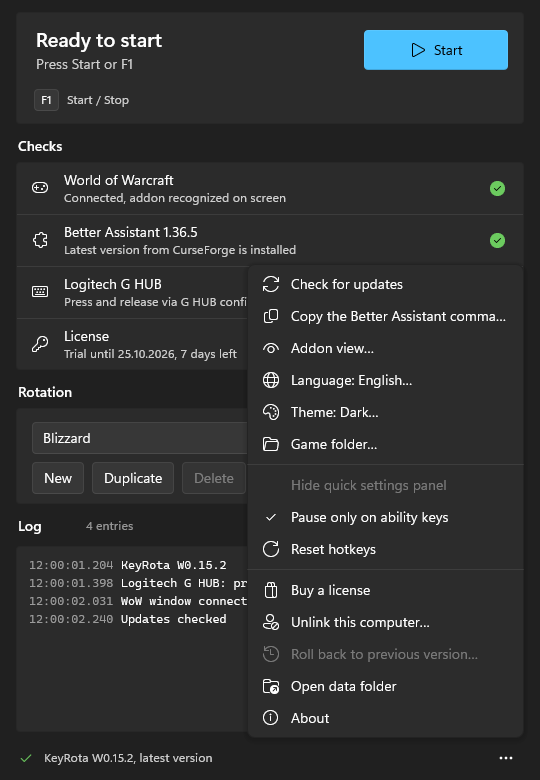
- In the World of Warcraft row click Copy, paste the command into the game chat and press Enter. The same command is in the “…” menu: Copy the Better Assistant command.
- Make sure Better Assistant is fully visible and no other window covers it: a browser, a messenger, overlays. It's easiest to keep it in a free corner of the screen: hold Shift and drag its first icon with the left mouse button.
- The game must not be minimized.
If KeyRota names the window that covers Better Assistant, move that window or just switch to the game.
Logitech G HUB isn't confirmed#
- Click Retry in the Logitech G HUB row.
- If G HUB isn't installed, KeyRota downloads the Logitech installer and opens it. Let it make changes and wait for the installation to finish.
- If G HUB is installed but not running, KeyRota starts it by itself.
- If the row still isn't green, restart KeyRota.
A Mac doesn't need Logitech G HUB.
KeyRota can't find World of Warcraft#
- “Game folder not found”: click Choose folder… and pick the folder the game is installed in. You can change it later in the “…” menu: Game folder….
- “Not running: will connect automatically when the window appears”: just start the game.
- “WoW is minimized”: restore the game window.
KeyRota presses nothing#
Check in this order:
- All Checks rows are green. If the top says Key required, activate your license or the free trial.
- The rotation is started: the top of the window says Running. If not, press F1 or Start.
- The game window is active: you are playing in it, not in another window.
- The game chat is closed. While it's open, KeyRota pauses (the panel header turns yellow); after Enter or Escape it carries on by itself.
- Your abilities are on the action bars and have keys bound to them.
- Better Assistant is visible on screen (see above).
How to stop the rotation#
Press F1 again or click Stop in the KeyRota window. Escape doesn't stop the rotation. To use another key, click the key in the top section of the window; to go back to the usual keys, use the “…” menu: Reset hotkeys.
Updates#
Nothing to do: when it starts, KeyRota installs a new version and a fresh Better Assistant by itself. If an update comes out while the rotation is running, KeyRota doesn't interrupt your game: “New version found” and an Install button appear at the bottom of the window. To check by hand, use the “…” menu: Check for updates.
Language and theme#
Open the “…” menu at the bottom right of the window: it has Language and Theme. By default the language follows your OS and the theme is dark.
Blizzard or advanced rotation#
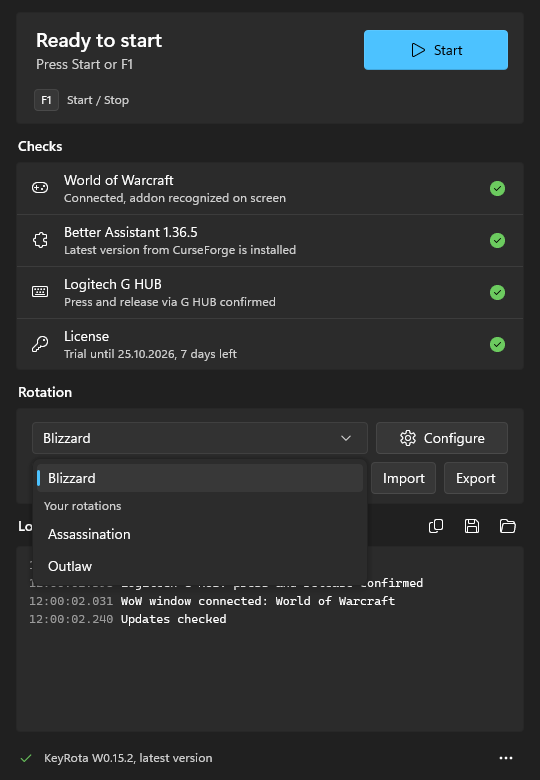
- Blizzard: the rotation the game itself suggests. It works right away on any class and damage (melee and ranged DPS) or tank specialization, with nothing to set up.
- Advanced rotation: your own rules for what to press and when: DoTs, big cooldowns on the Burst button, your own logic for several targets. The easiest way to build one is with an AI agent; everything else is in the Advanced rotation section.
Pick a rotation in the Rotation list while the rotation is stopped.